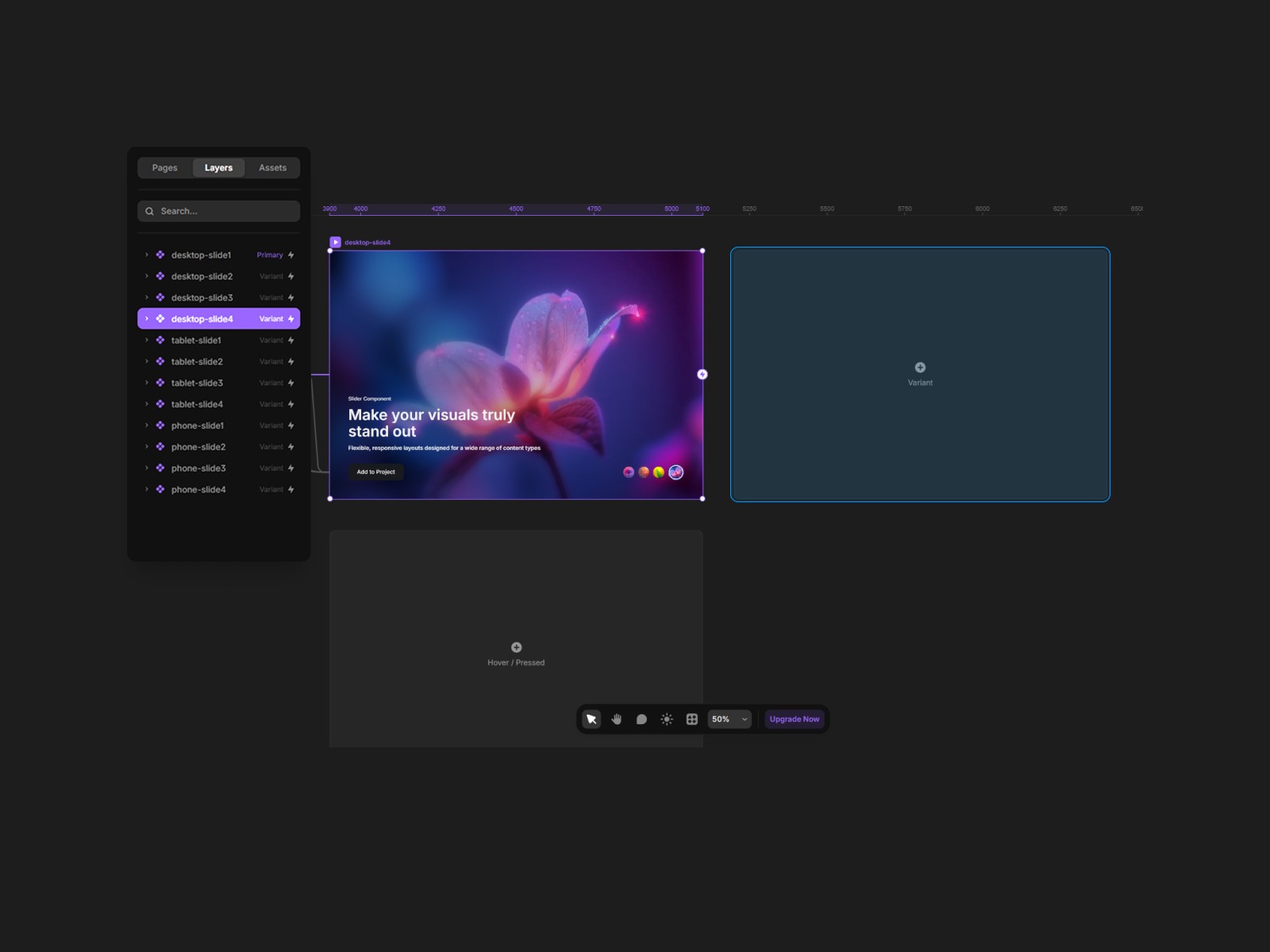
In the Layers panel, select any slide (e.g.,
desktop-slide4)Duplicate the slide (⌘/Ctrl + D)
👉 This creates a new slide with the same pre-configured structure.
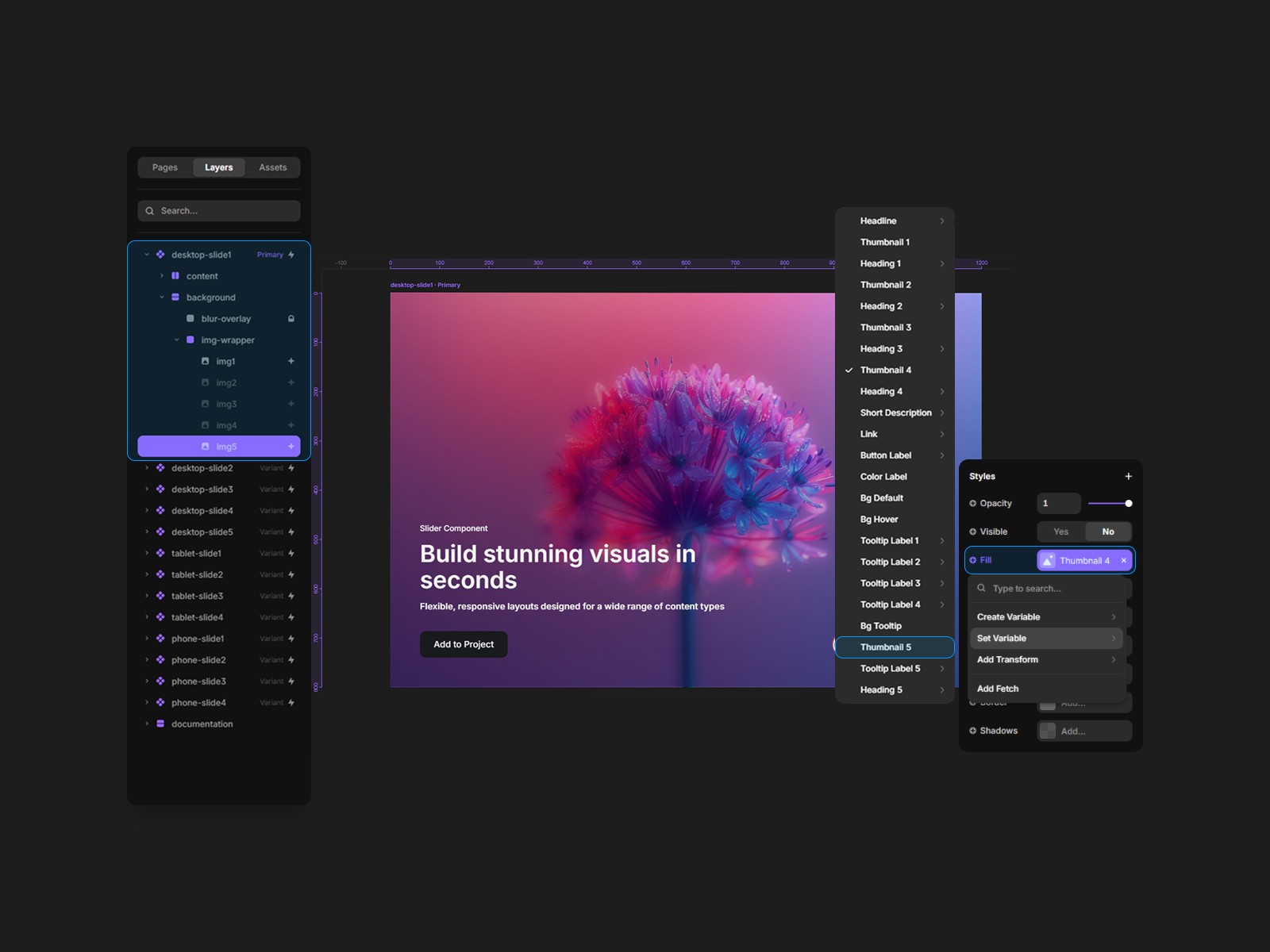
Replace the image:
In the main component, duplicate the image (⌘/Ctrl + D)
Rename the image based on its slide order (e.g.,
image5)
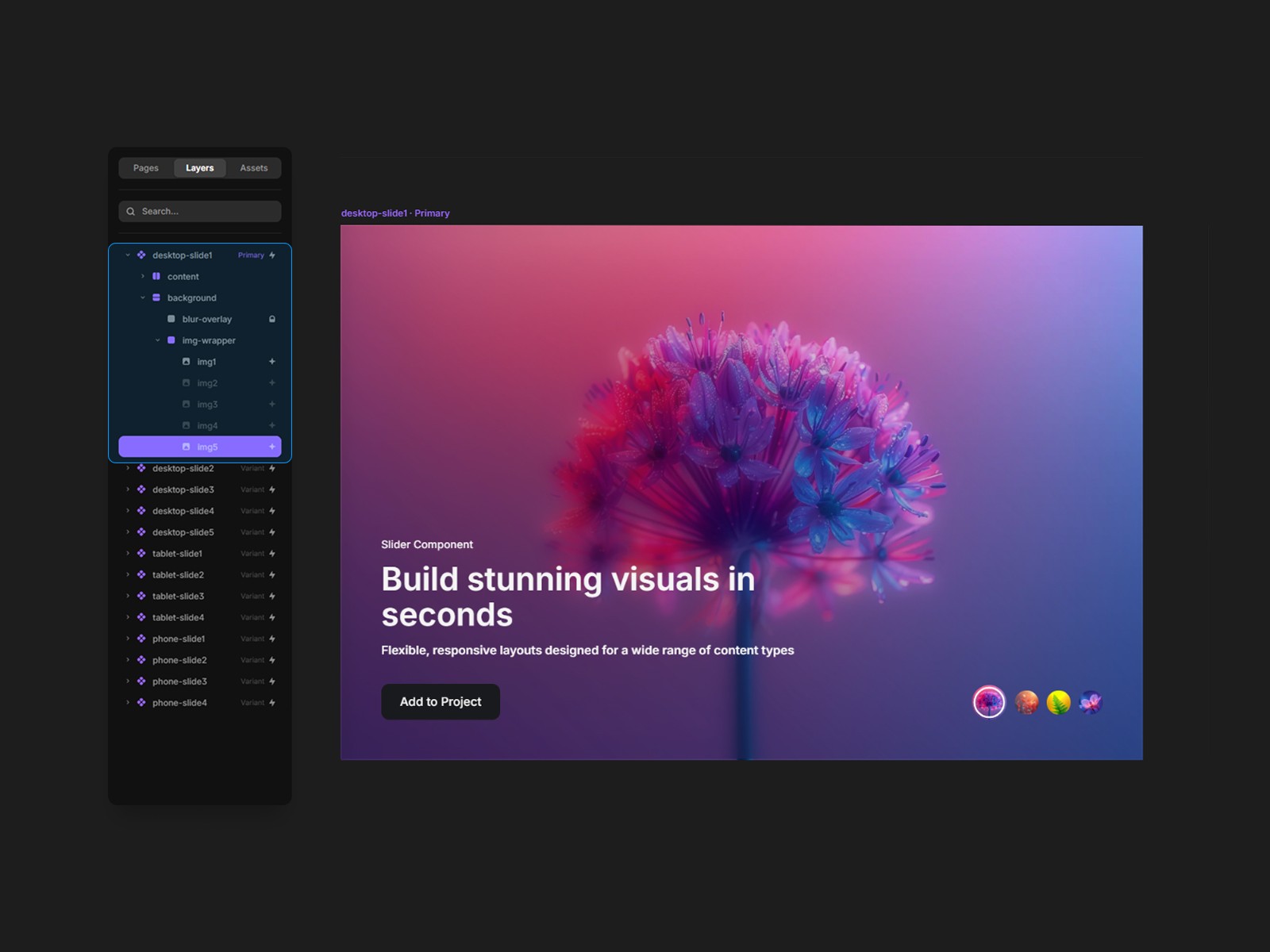
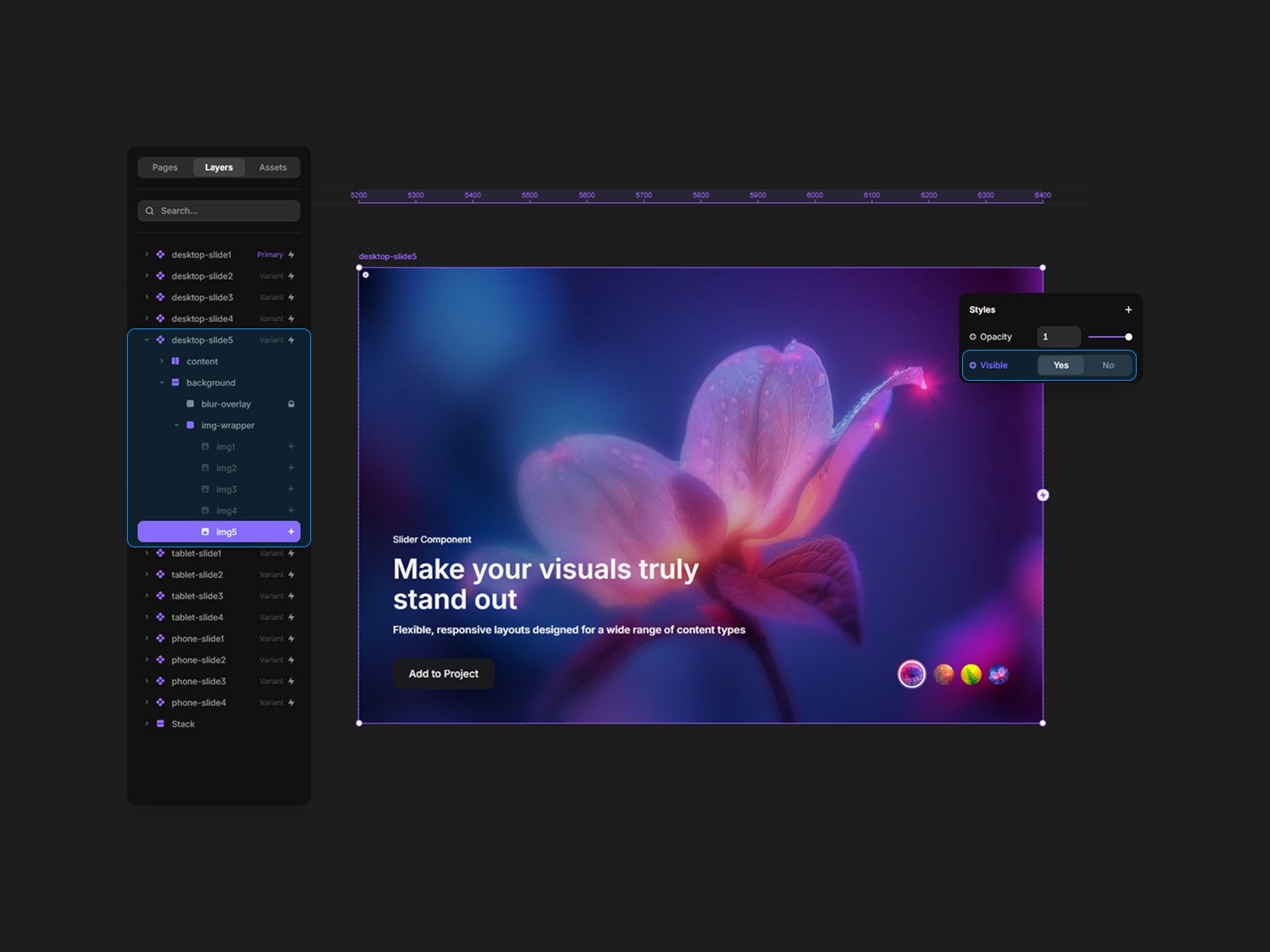
In the newly created slide, make the last added image visible and disable all others
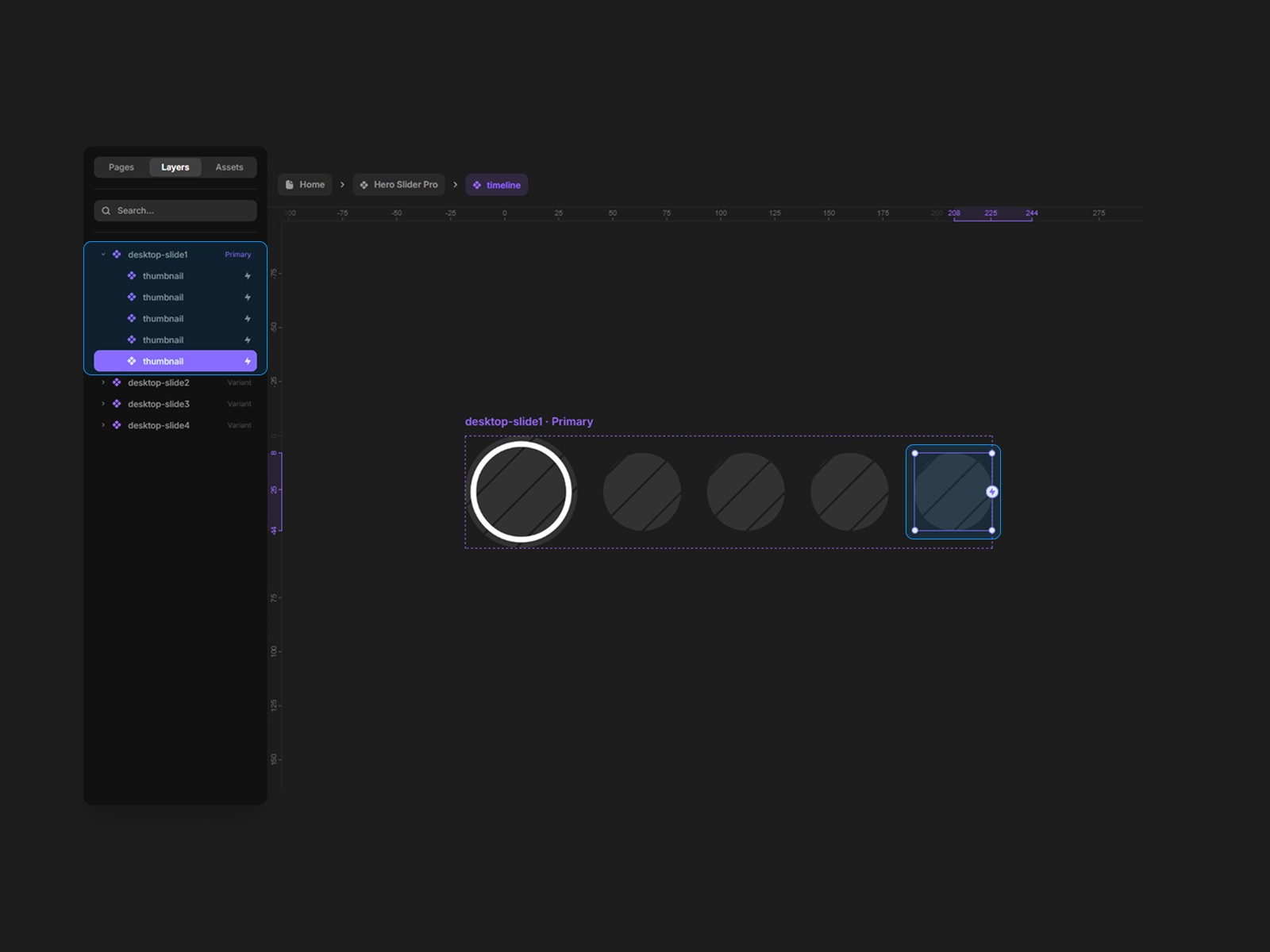
👉 Each slide requires a corresponding thumbnail in the timeline (root level).
Go to:
timeline→thumbnails
Then:
a.
Duplicate any existing thumbnail
Move it to the end of the list
b.
Duplicate the timeline variant
Set the correct thumbnail sizes
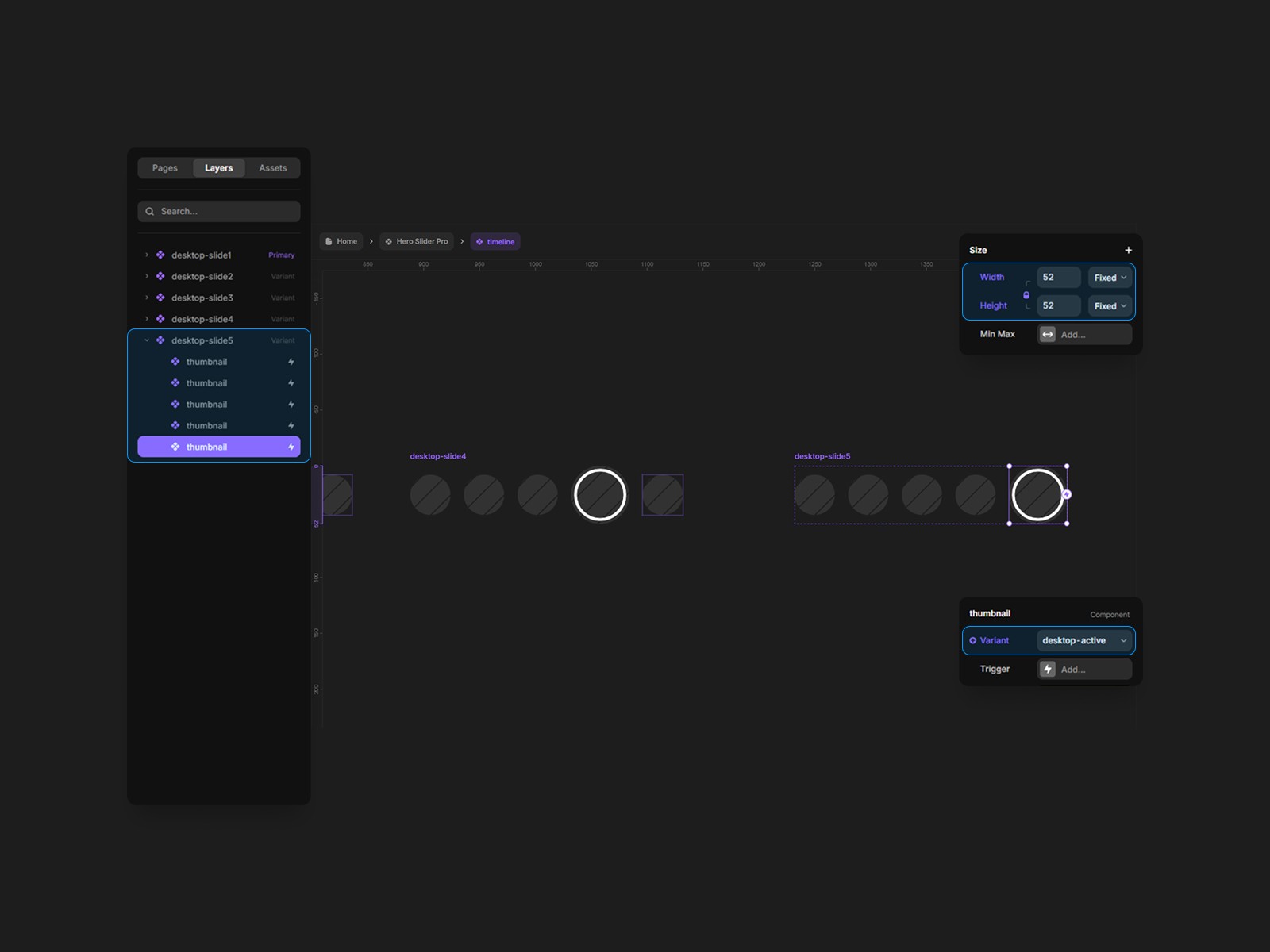
Select the new thumbnail and configure:
Variables:
In the top toolbar, click Variables
Create a variable (e.g.,
Thumbnail 5)
Tooltip:
Create a variable Tooltip Label 5
Tooltip Label 5Connect it to the thumbnail
Interactions:
Open the Interactions section
Set:
Click→Click 5
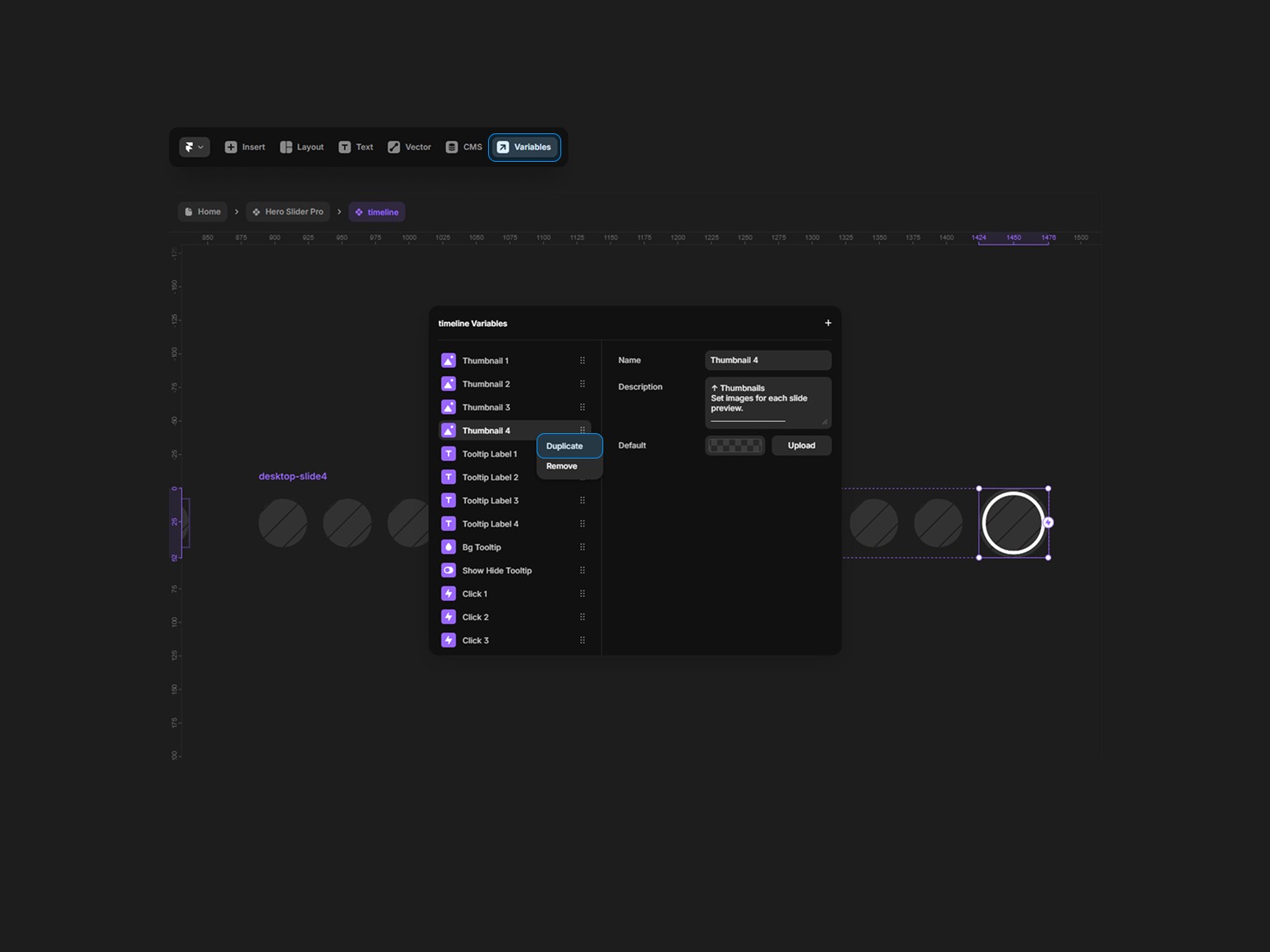
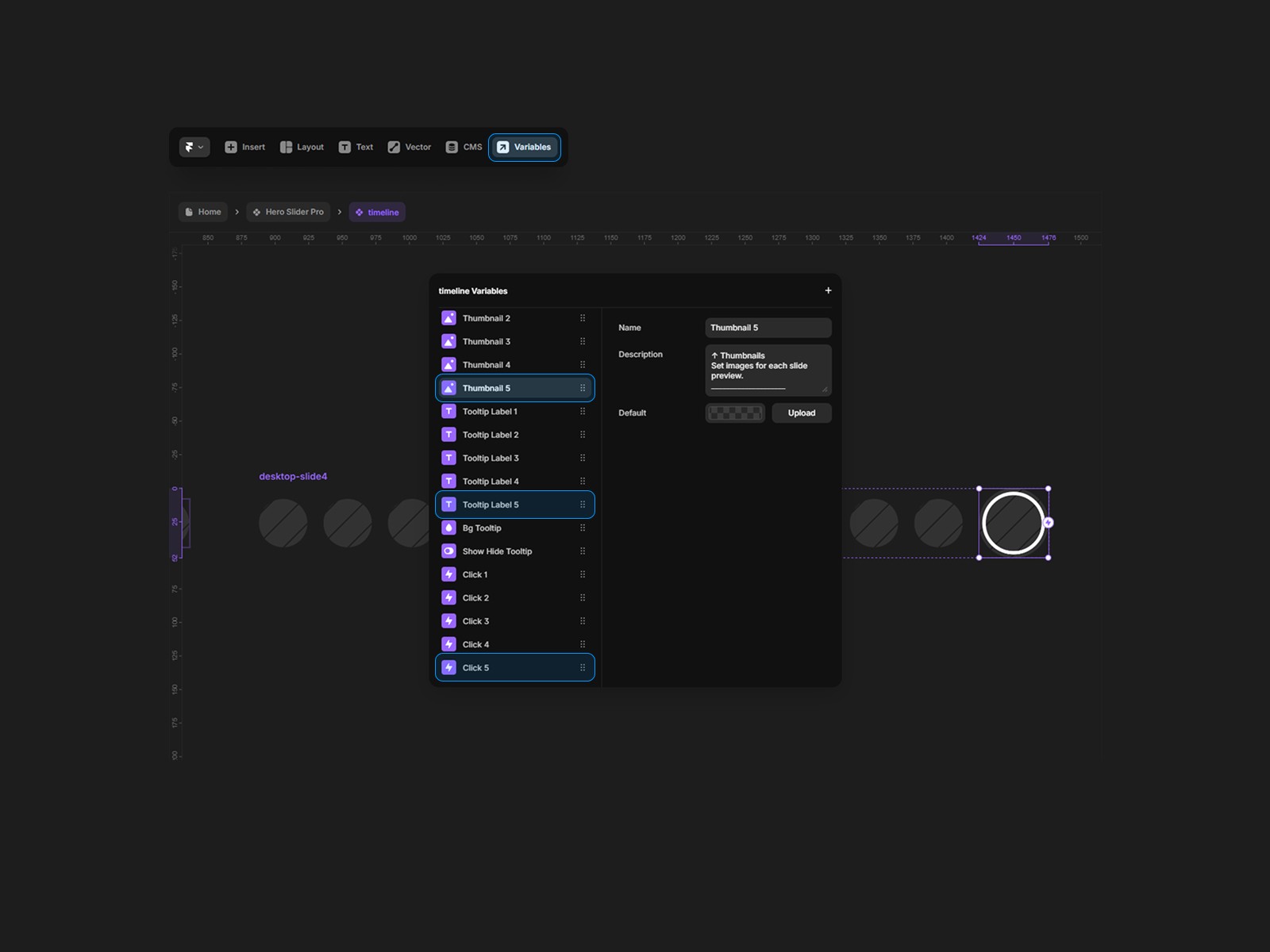
Connect all created tokens:
ThumbnailTooltipClick
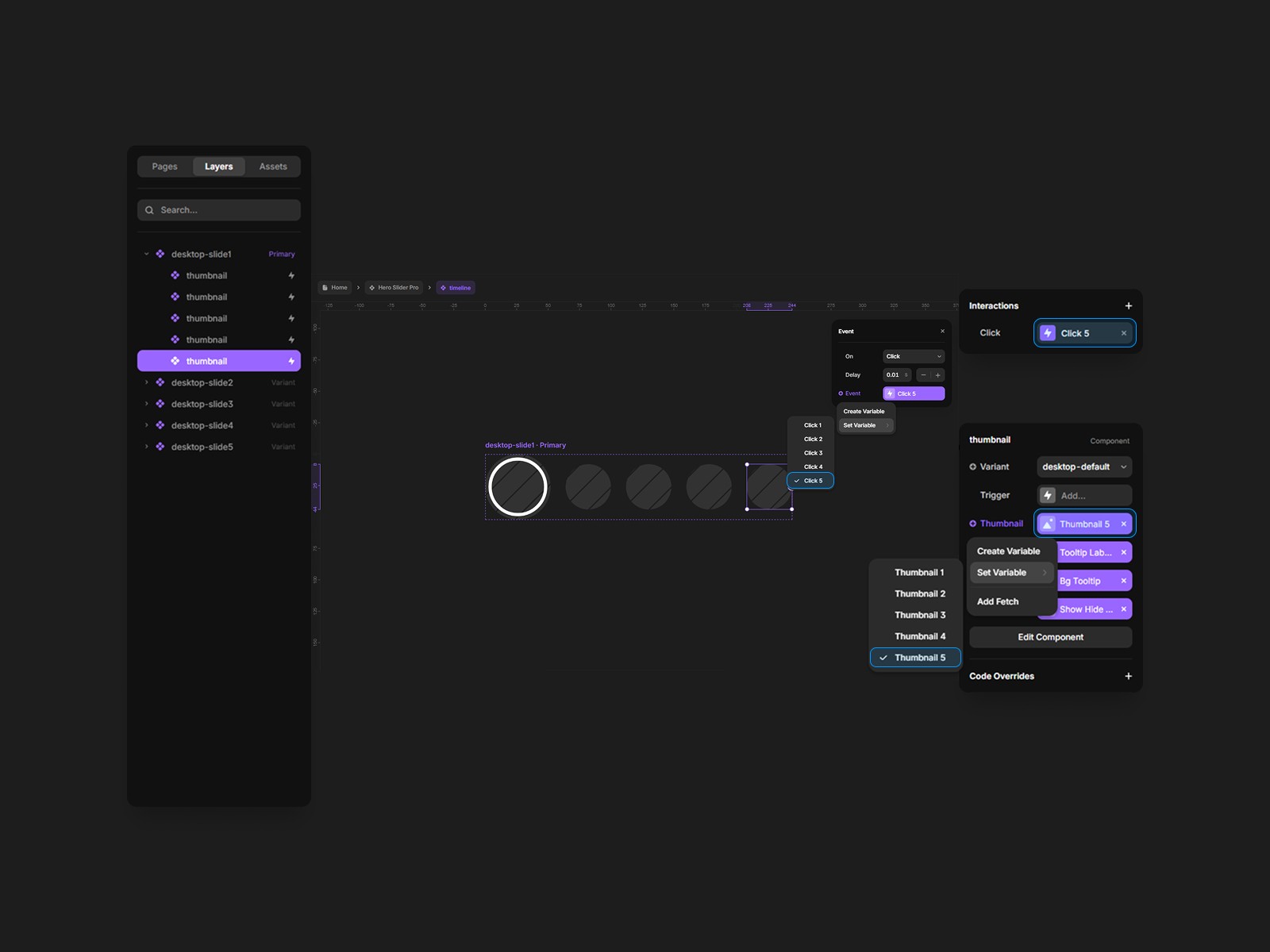
Create tokens:
ThumbnailTooltip
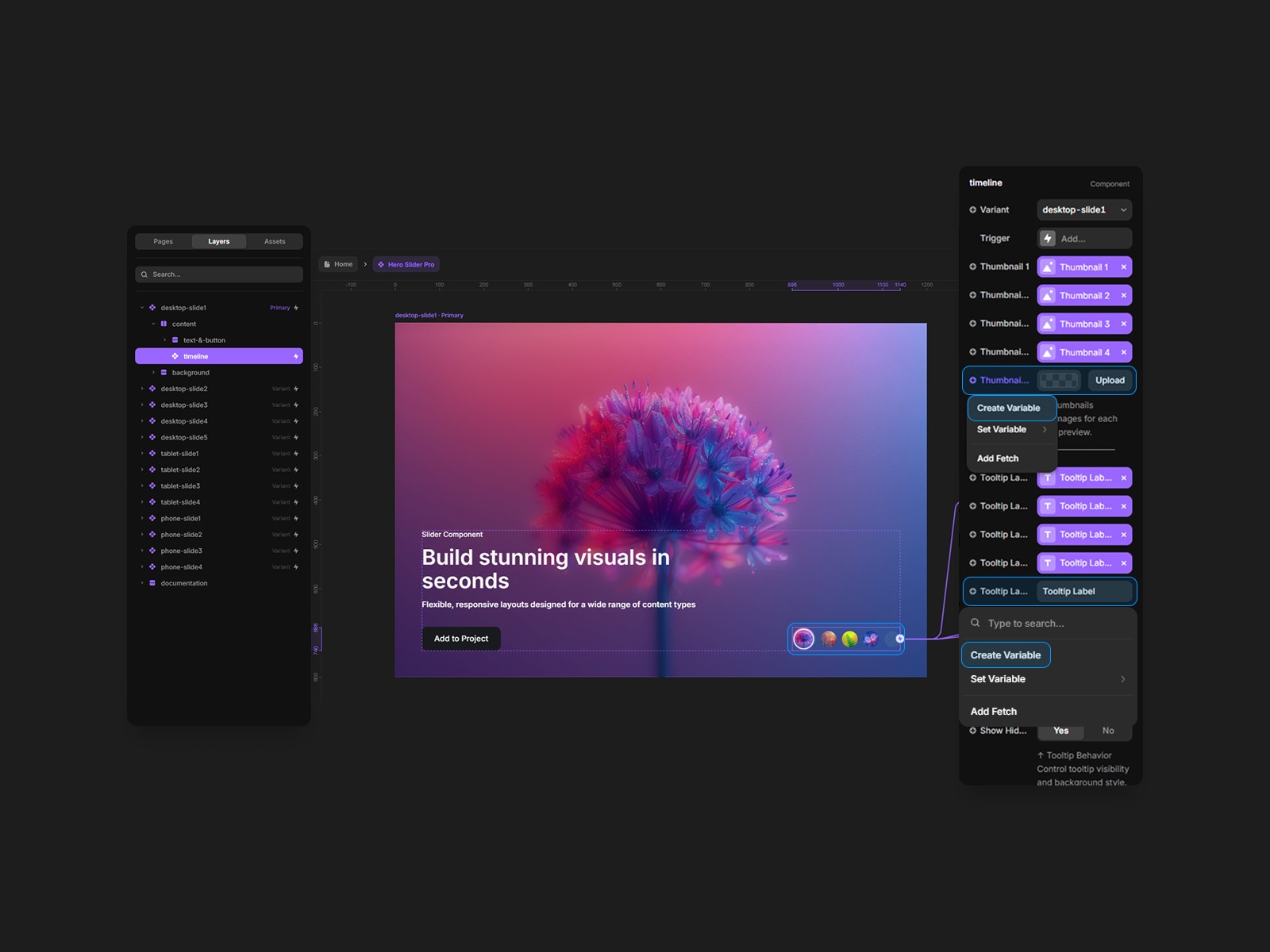
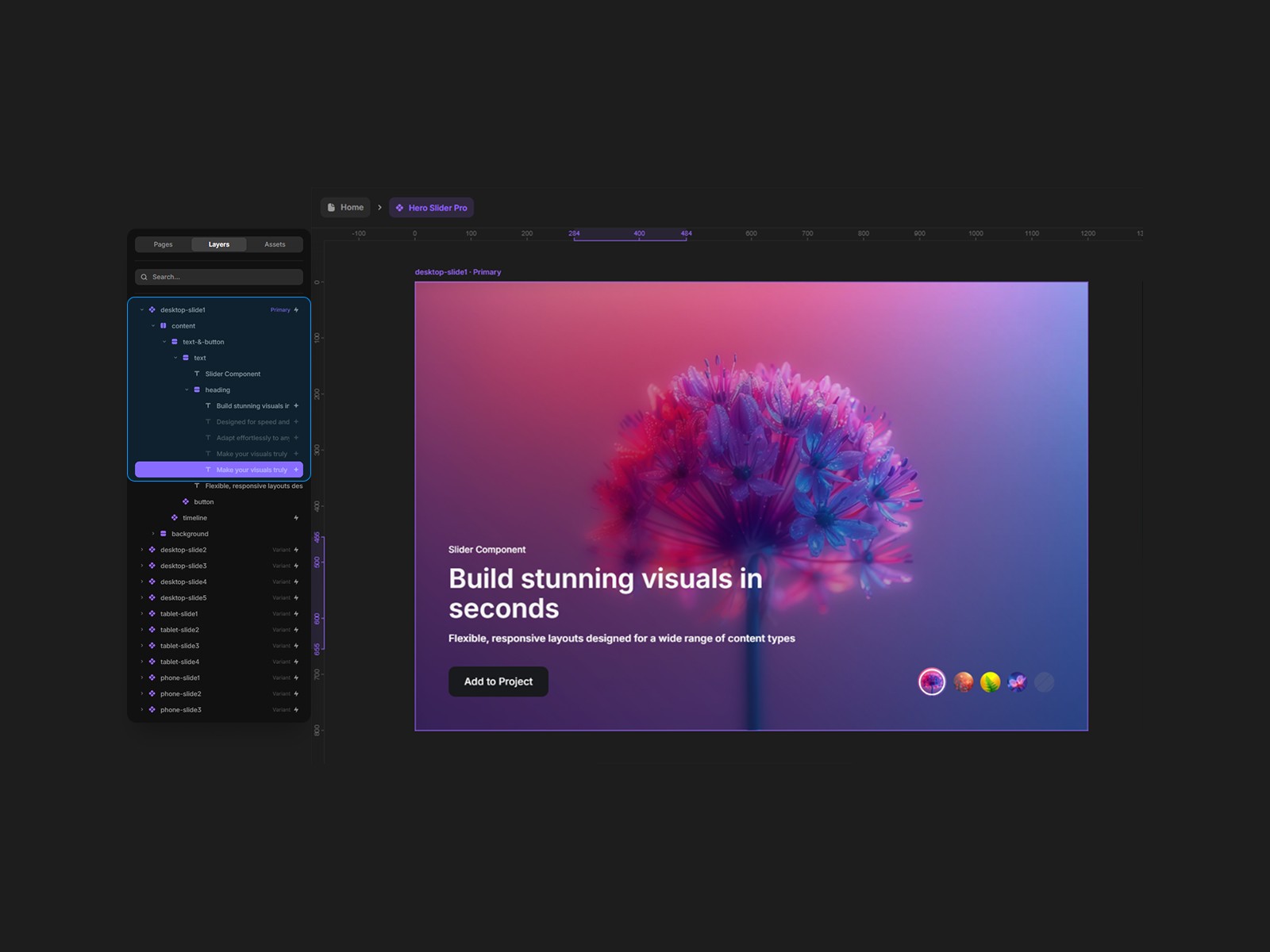
Duplicate the heading in the main slide
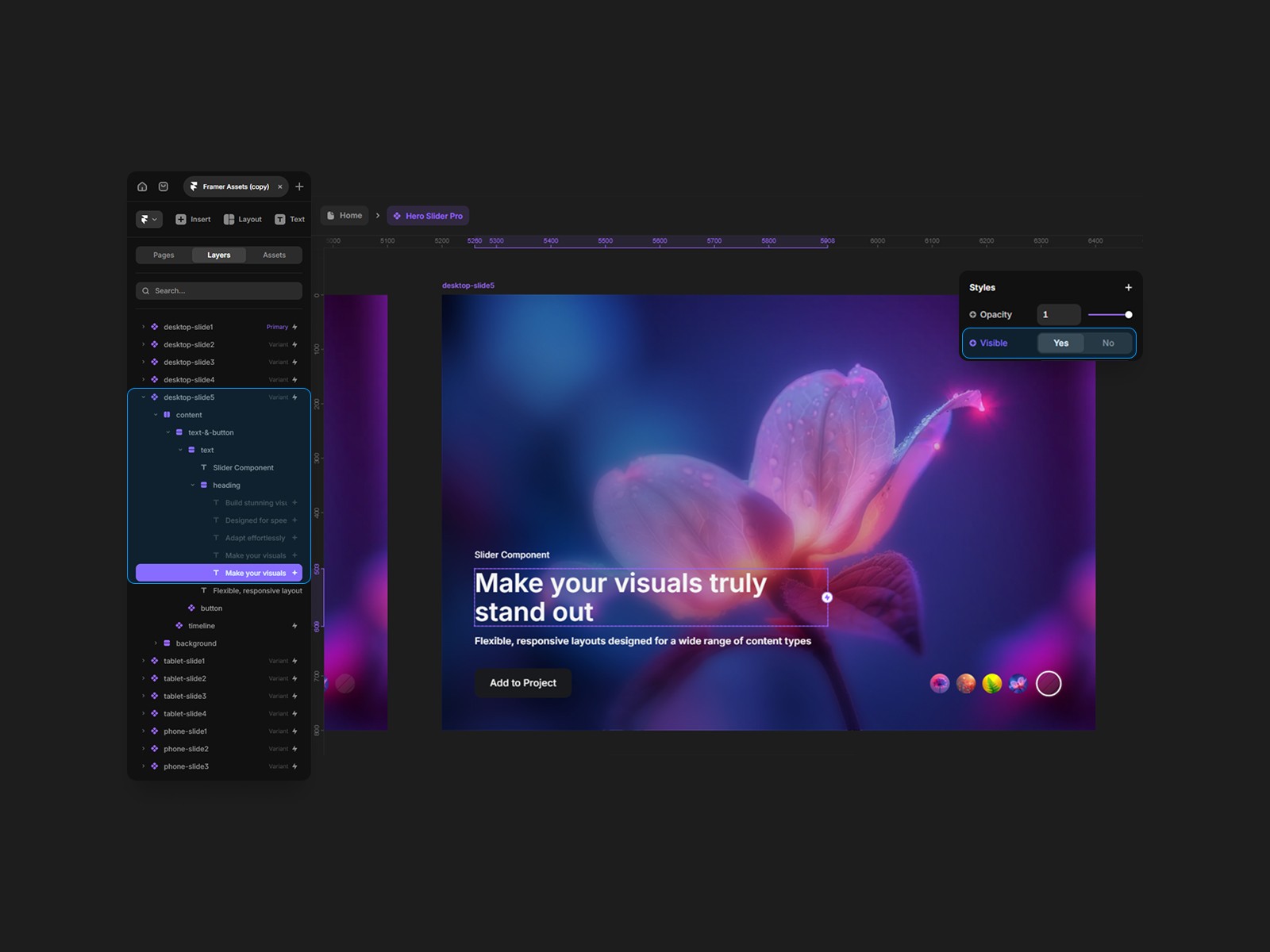
Enable its visibility
Create a variable for the heading text (e.g.,
Heading 5)
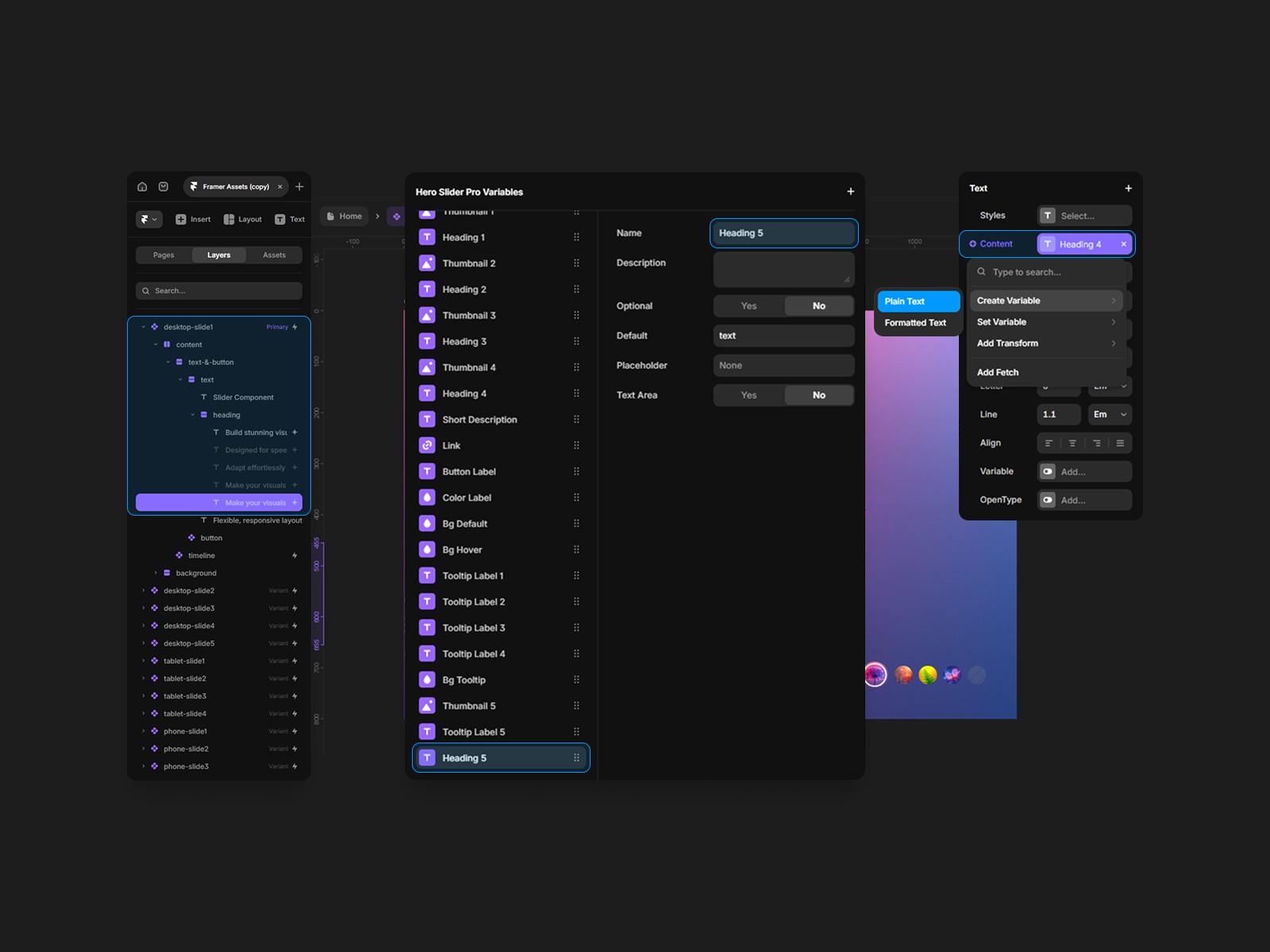
Link the main slide image to the corresponding variable (e.g.,
Thumbnail 5)
Create corresponding slide versions:
tablet-slide5phone-slide5
If any step is skipped:
the slide will not switch
or will not appear in navigation
Always duplicate existing elements - do not create from scratch
We recommend using no more than 7 slides for optimal performance and usability
👉 A large number of slides may negatively impact user experience and make the component harder to manage.